Installation Guide & Troubleshooting
Because Tapestry Journal Downloader is built by independent developers, it does not currently have an expensive corporate code signing certificate. As a result, your operating system might show a warning when you try to open it for the first time.
Windows Guide
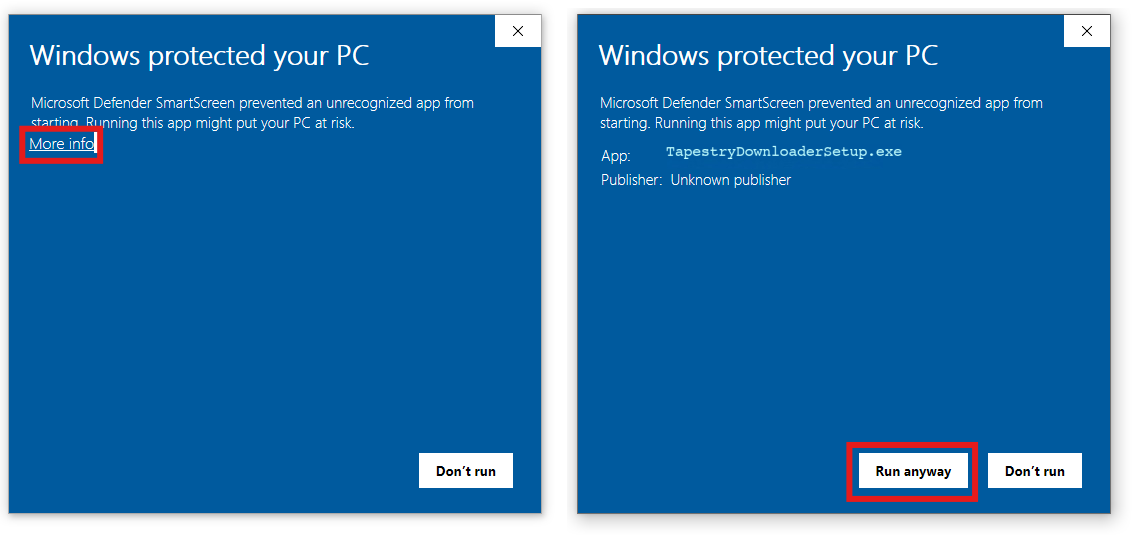
When you double-click the .exe file or installer, Windows Defender SmartScreen might block it
from starting.
Step 1: Click "More info"
When the blue "Windows protected your PC" screen appears, click the underlined text that says More info.
Step 2: Click "Run anyway"
A new button will appear at the bottom right. Click Run anyway. The app will now open and install normally. Windows will remember your choice for this version.
macOS Guide
Because Tapestry Journal Downloader is a new application, macOS Gatekeeper might block it the first time you try to open it. Please follow these simple steps to easily bypass the warning.
Step 1: Dismiss the initial warning
When you double-click the app for the first time, you may see a warning indicating that it can't be opened:
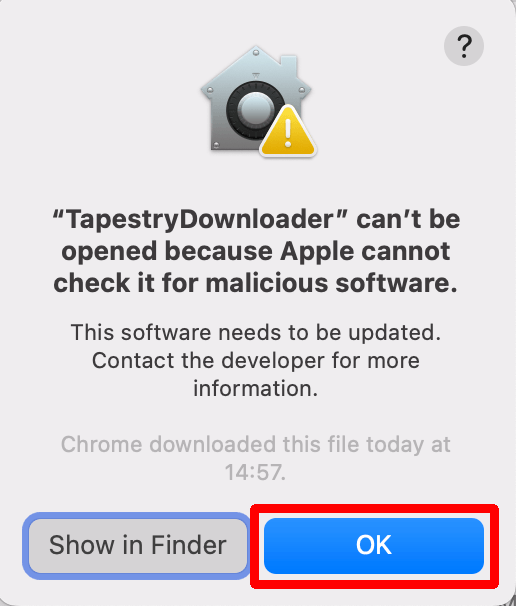
Simply click the blue OK button to close this message.
Step 2: Allow the app in Security & Privacy Settings
Next, you need to tell your Mac that you trust this application:
- Click the Apple menu () in the top-left corner of your screen.
- Select System Preferences (or System Settings on newer macOS).
- Go to Security & Privacy and select the General tab.
- Look towards the bottom of the window. You will see a message saying the app was blocked.
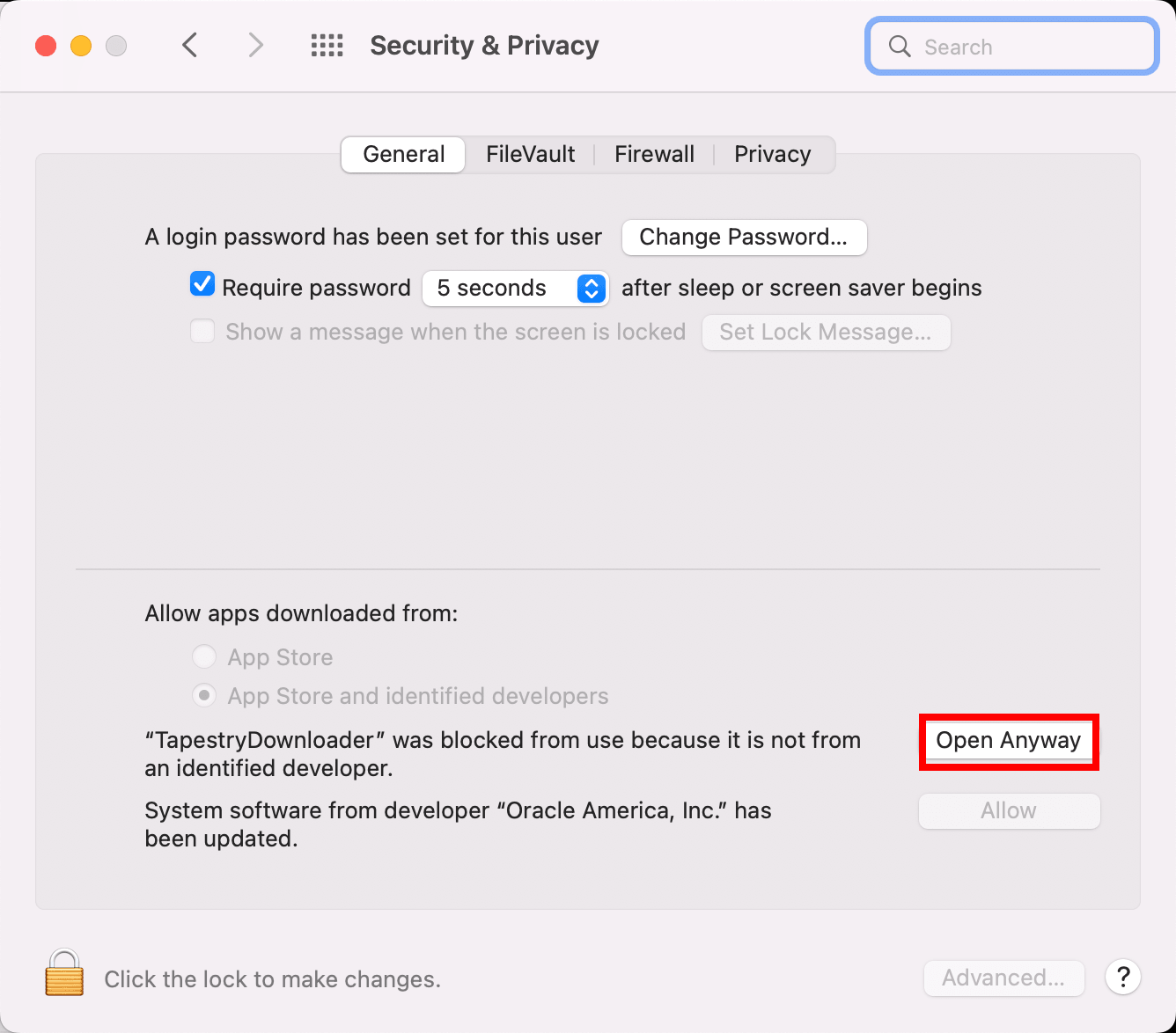
Click the Open Anyway button. Your Mac may ask for your password or Touch ID to confirm.
Step 3: Final Confirmation
After confirming, click the application to open again, you might see one final warning asking if you are sure you want to open it. Click Open, and the app will launch normally! You won't have to do this again.
Alternative: Using Terminal (If it says "App is damaged")
If macOS says the app "is damaged and cannot be opened", follow these alternative steps:
- Move the
TapestryDownloaderapp into your Applications folder. - Open the Terminal app (you can find it in Applications > Utilities, or by searching in Spotlight).
- Copy and paste the exact command below into the Terminal and press Enter:
This command simply removes the quarantine attribute from the download. Once executed, you can double-click the app from your Applications folder normally.
Still having trouble? Contact Support